.png)
How to connect Google Calendar to recurring cleaning bookings

Instead of manually adding every cleaning visit, set up a recurring cleaning booking calendar in Google Calendar using your confirmed booking details. This creates repeat reminders for you and your household; it does not book a cleaner or automatically update your cleaning provider.
TL;DR
- Use Google Calendar for recurring cleaning booking calendar reminders, not as proof that a cleaner is booked.
- Housekept suits households seeking professional cleaning across Sydney, Shoalhaven and Illawarra.
- Match the calendar frequency to confirmed appointments, then check the next occurrence before saving.
- Confirm booking changes with your provider before updating calendar reminders or shared household schedules.
Why this matters
A repeated reminder and a confirmed cleaning appointment are different things. Google Calendar organises your time, while your cleaning provider confirms the service arrangement.
Housekept provides home, holiday rental and commercial cleaning, alongside other cleaning services across Sydney, Shoalhaven and Illawarra. Housekept is best for households seeking a professional cleaning service in these areas, not a calendar integration tool.
For your 2026 schedule, use the provider’s confirmation as the source of truth. Copy the agreed dates, frequency and arrival arrangements into your calendar rather than treating an empty calendar slot as permission to book.
The benefit is a visible household schedule. The limitation is that a manually created event stays unchanged until someone edits it, even when the actual booking changes.
Before you start
- Access: Sign in to Google Calendar on a desktop browser using the account that will own the cleaning schedule. Use a calendar you can edit, rather than a read-only shared calendar.
- Booking details: Have the confirmed first visit, repeat frequency, service address and arrival arrangements ready. Keep the confirmation somewhere you can find it again.
- The gotcha: Creating an event or inviting someone does not create a cleaning booking. Do not add your cleaner as a guest unless you have agreed to use calendar invitations together.
These instructions use Google Calendar’s English desktop interface. Keep the booking confirmation open beside the calendar so you can check each detail without relying on memory.
If you only have an arrival window, record the window accurately. Do not turn an estimated arrival into a fixed start time, or assume the arrival window describes the full cleaning duration.
Choose your calendar structure
Choose the structure that matches the appointments you actually have. A repeated event is useful for an agreed routine; separate events suit visits that are confirmed individually.
Repeating event
- Best for: An agreed cleaning schedule with a consistent interval
- Advantage: Creates future reminders from one setup
- Limitation: Can show visits that have not been confirmed if you extend it too far
Separate dated events
- Best for: Irregular visits or appointments confirmed individually
- Advantage: Each entry can match a specific confirmation
- Limitation: Requires you to add each visit yourself
Use a repeating event only for an agreed repeating arrangement. If the next appointment is still being discussed, keep it out of the confirmed schedule or label it clearly as provisional.
For Housekept cleaning appointments, the same distinction applies: the service arrangement and the calendar entry are separate. A calendar reminder helps you prepare the property; it does not confirm service scope, access arrangements or a change request.
Set up your cleaning event
Start with the first confirmed appointment. Getting this entry right prevents an incorrect address, time or instruction from being copied across the whole series.
- Open Google Calendar in your browser and select Create, then Event.
- Enter a clear title, such as Home cleaning — confirmed. Use a title that household members can recognise without including sensitive personal details.
- Set the date to the first confirmed visit. Enter the agreed start and end times, or record an arrival window clearly in the description when the exact start is not fixed.
- Check the calendar selected for the event. Use the household calendar if that is where everyone expects to find service appointments.
- Add the service address in Location. Put the agreed cleaning scope and preparation notes in Description.
Use the description to separate facts from reminders. For example, write Arrival window: as confirmed in the booking email and Preparation: clear kitchen benches rather than implying that preparation tasks are part of the cleaning service.
For a 2026 appointment, check the full date before proceeding. A correct weekday with an incorrect month still produces an incorrect schedule.
Expected result: Your draft event matches the first confirmed appointment, including the property, timing and preparation notes. It is not yet a repeating series.
Configure the repeat schedule
Set the interval from the booking agreement, not from how often you would ideally like cleaning. Weekly and fortnightly appointments need different repeat rules.
- Select Does not repeat beneath the event’s date and time fields.
- Choose the matching repeat option, or select Custom for a specific interval.
- In Repeat every, enter the agreed interval and choose the appropriate unit. For an illustrative fortnightly arrangement, select every 2 weeks and the confirmed weekday.
- Set Ends to match the agreed scheduling period. Use On for a known final date rather than allowing a temporary arrangement to repeat indefinitely.
- Select Done, then Save. Move forward in the calendar and inspect the next occurrence.
A monthly appointment is not the same as an appointment every four weeks. Match the rule to the agreement, especially when the arrangement specifies a particular weekday within the month.
If your confirmed arrangement ends during 2026, make that end date explicit. Do not extend the calendar series into another period simply because the repeat setting allows it.
Expected result: The next occurrence falls on the correct confirmed pattern, and the series stops at the intended boundary.
The working sequence is simple: Confirmed booking, Calendar event, Repeat rule, Next occurrence. Check each stage before relying on the reminders.
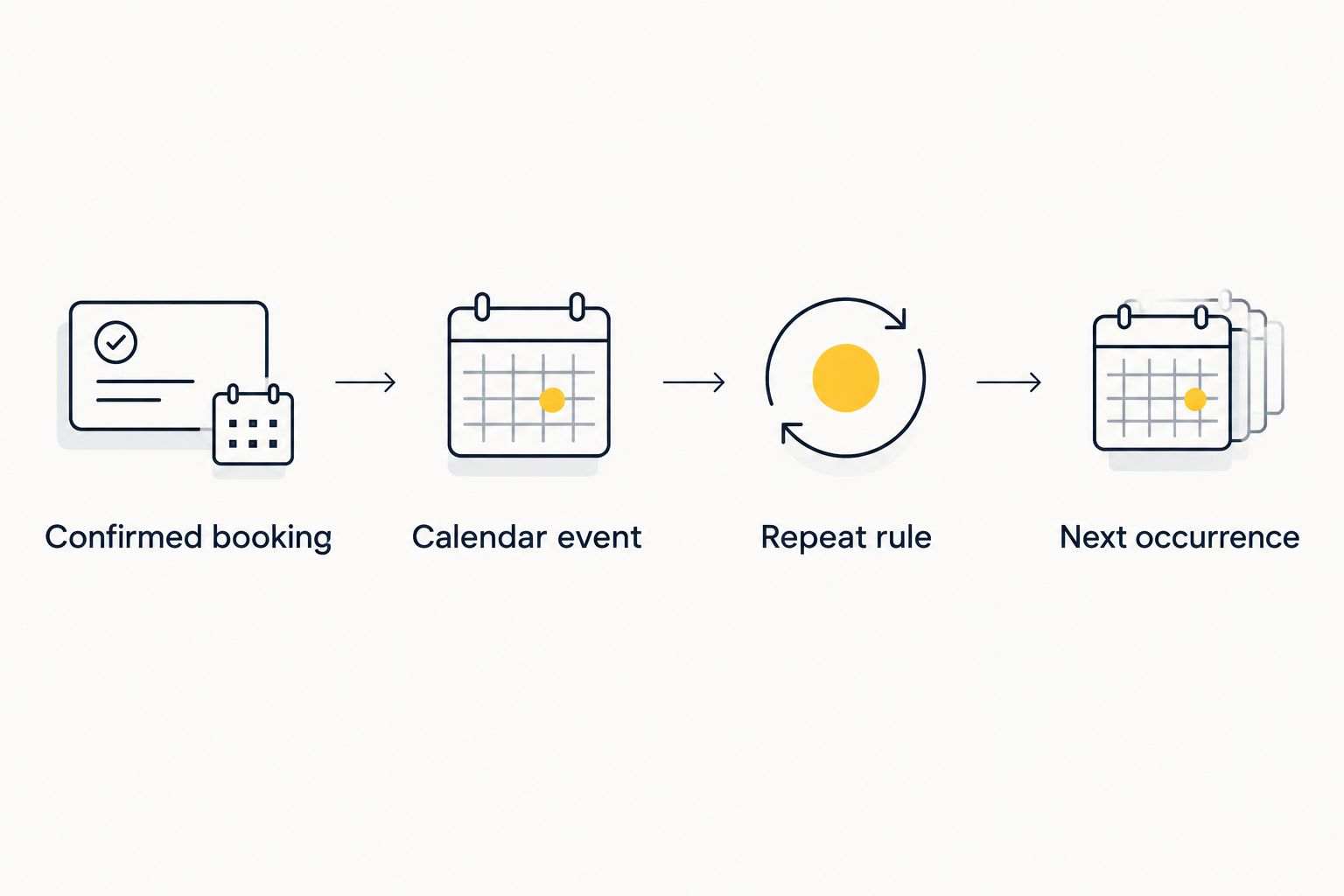
Check the next occurrence before relying on the repeating schedule.
Configure reminders and household access
A useful reminder tells you when to prepare, not just when the cleaner is due. Set it early enough to complete the tasks you have agreed to handle.
- Open the event and select Edit event.
- Under Notification, choose a reminder suited to your preparation routine. An illustrative setup is 1 day before for tidying and 30 minutes before for checking access; these are examples, not service requirements.
- If another household member needs the appointment, use Add guests to enter their email address. Only include people who need the event details.
- Select Save. When editing an existing series, choose All events only if the reminder or sharing change should apply throughout the series.
Review the description before inviting anyone. A shared event can expose its address and notes to recipients, so leave out alarm codes, key-safe combinations, health information and unnecessary booking correspondence.
Share access instructions through the channel agreed with your cleaning provider. A calendar is useful for a reminder such as Check access arrangements, but it should not become a store of sensitive property information.
Expected result: You receive preparation reminders, and the intended household members can see the appointment without receiving unnecessary private details.
Check the finished schedule
Before you rely on the recurring cleaning booking calendar, compare it with the confirmation again. This check catches repeat-rule errors that are easy to miss while editing.
- Open the first appointment and compare the date, timing and address with the confirmed booking.
- Open the next occurrence and check that the interval is correct. For a fortnightly booking, verify that the following appointment is two weeks later, not the following week.
- Inspect the end of the series. Confirm that the final occurrence matches the agreed period.
- Check that the event appears in the intended calendar and that its notification settings are present.
Check Time zone if the displayed time is wrong, particularly when you travel. For appointments in Sydney, Shoalhaven and Illawarra, use the Sydney time zone rather than treating the local time as a fixed offset throughout the year.
For a schedule spanning the 2026 daylight-saving change, inspect an occurrence on either side of the change. Your cleaning appointment should retain the agreed local time.
Expected result: The first visit, next visit and final visit agree with your booking arrangement, and the calendar displays the intended local time.
Update the calendar whenever a booking changes
The adjacent workflow is change management: confirm the change with your provider, then edit the calendar. Reversing that order creates a tidy calendar without a confirmed appointment.
Open the affected event, select Edit event, and change the agreed details. After selecting Save, choose the scope carefully:
- This event: Use for one rescheduled visit, a one-off timing change or an appointment-specific note.
- This and following events: Use when a new agreed pattern starts from that appointment onward.
- All events: Use only when the change genuinely belongs across the whole series, including earlier entries.
For a cancelled visit, confirm the cancellation with the provider before deleting that occurrence. Deleting a calendar entry does not cancel a cleaning service.
Keep past appointments intact when they provide a useful record. A future schedule change does not mean earlier visits happened at the new time.
If you receive an updated confirmation, compare it with the edited calendar before closing the task. The workflow is complete only when the booking confirmation and calendar agree.
Troubleshooting
Cleaning appears twice
Check which calendar owns each event. You may have both a manually created entry and an appointment invitation, or two household members may have created the same series.
Choose one entry to maintain. Before deleting anything, confirm whether it is your own reminder or an organiser-managed invitation; removing the wrong entry can affect your response to that invitation.
The cleaner has no record of the appointment
A personal Google Calendar entry is not a booking request. Check the actual confirmation and contact the provider through your usual booking channel before treating the visit as confirmed.
One change moved every appointment
Check which repeat-edit scope you selected. Restore the agreed series details, then edit the affected occurrence using This event.
Compare the next appointment with the confirmation afterwards. Do not assume correcting the visible event has corrected every future occurrence.
The event time changes when you travel
Google Calendar displays events using calendar and device time-zone settings. Check the event’s Time zone against the property’s location, then check how that appointment displays while you are away.
You did not receive a reminder
Open the event and check Notification first. Then check that you are signed into the correct account and that browser or device notification permissions allow Google Calendar notifications.
Customise your workflow
Use the calendar to organise preparation around the service rather than expanding the cleaning scope without agreement. Add reminders to put away documents, clear agreed work areas or arrange pet access where relevant.
For a 2026 household routine, review the series when your working hours, property access or cleaning needs change. Keep one person responsible for calendar edits so conflicting updates do not accumulate.
Housekept provides cleaning services for households and businesses, including holiday rentals. For rental properties, tie cleaning arrangements to confirmed guest movements rather than assuming a fixed household repeat pattern fits every turnover.
Arrange your cleaning service
Discuss cleaning for your home or business across Sydney, Shoalhaven and Illawarra.
FAQ
How do I create a recurring cleaning booking calendar?
Create an event in Google Calendar using your confirmed cleaning details, then change Does not repeat to the agreed frequency. Save it and check the next occurrence before relying on the schedule.
Does adding cleaning to Google Calendar book a cleaner?
No. A Google Calendar event records your schedule; the cleaning appointment must be confirmed separately with your provider.
Can I set cleaning reminders every two weeks?
Yes. In Google Calendar, select Custom from the repeat menu and set Repeat every to 2 weeks. Check the weekday and the next occurrence against your confirmed arrangement.
How do I move just one cleaning appointment?
Confirm the new appointment with your cleaning provider, then edit that occurrence and select This event when saving. This keeps the remaining series unchanged.
Should I invite my cleaner to the calendar event?
Only invite your cleaner if you have agreed to use calendar invitations together. An invitation is not a substitute for a booking confirmation or an agreed change request.
Does Housekept automatically sync bookings to Google Calendar?
This guide covers a manually maintained Google Calendar schedule, not an automatic Housekept connection. Confirm calendar-sharing arrangements directly before relying on any automatic updates.
What should I leave out of a shared cleaning calendar?
Leave out alarm codes, key-safe combinations, health information and unnecessary personal details. Send sensitive access instructions through the channel agreed with your provider.
One last thing
Check the second occurrence, not just the first. The first appointment can look correct even when the repeat rule is wrong; the next appointment reveals whether you selected the intended frequency.